
There is nothing more frustrating than trying to grab a crucial file for a meeting, only to watch File Explorer freeze up and hit you with a "Not Responding" white screen. Whether you need to open File Explorer for the first time, customize how it works, fix a crash, or find official Microsoft support, this complete guide covers every way to get help with File Explorer in Windows 11 — from basic navigation to advanced troubleshooting.
What Is File Explorer in Windows 11?
File Explorer (formerly Windows Explorer) is the built-in file management application included with every version of Windows. It provides a graphical interface to browse, open, organize, copy, move, and delete files and folders across your drives, network locations, and cloud storage. In Windows 11, it features a streamlined Command Bar replacing the older Ribbon, a modernized Quick Access section, and tighter integration with OneDrive.
Understanding how File Explorer works — and where to get help when it doesn't — saves significant time and frustration.
Modern Windows 11 Features: Tabs and Gallery
Recent updates to Windows 11 have introduced powerful new ways to browse your files.
- File Explorer Tabs: Just like a web browser, you can now open multiple folders in a single window. Click the + icon at the top to open a new tab, or middle-click a folder with your mouse wheel to open it in a background tab. You can even drag and drop files between tabs!
- The Gallery View: Found in the left navigation pane, the new Gallery node provides a visually rich, chronological timeline of your photos, seamlessly syncing with your phone's camera roll and OneDrive.
- The Modern Details Pane: Press Alt + Shift + P to open the updated Details Pane on the right side. It gives you a modernized overview of a file's metadata, sharing status, and recent activity without needing to right-click for properties.
How to Open File Explorer in Windows 11
Before you can use or troubleshoot File Explorer, you need to know how to open it. Windows gives you many ways to launch it — here are all of them:
- Step 1: Click the File Explorer icon on the taskbar (it looks like a yellow folder). This is the fastest method for most users.

- Step 2: Alternatively, press Windows key + E on your keyboard to open File Explorer instantly from anywhere in Windows.

- Step 3: Click the Start menu, type File Explorer in the search bar, and select it from the results.

- Step 4: Right-click the Start button and select File Explorer from the Power User menu that appears.

- Step 5: Press Windows key + R to open the Run dialog, type explorer.exe, and press Enter.
- Step 6: Open Command Prompt or PowerShell, type explorer.exe, and press Enter to launch File Explorer directly from the terminal.
File Explorer Keyboard Shortcuts
Keyboard shortcuts speed up your work significantly inside File Explorer. Here is a cheat sheet of the most useful ones to know:
| Shortcut | Action |
| Windows key + E | Open File Explorer from anywhere |
| Ctrl + T | Open a new tab |
| Ctrl + W | Close the current tab or window |
| Ctrl + Z | Undo your last action (e.g., accidental move or delete) |
| Ctrl + Shift + N | Create a new folder |
| Alt + Left Arrow | Go back to the previous folder |
| Alt + Up Arrow | Go up to the parent folder |
| F2 | Rename the selected item |
| F11 | Toggle full-screen mode |
| Alt + P | Show or hide the Preview Pane |
| Ctrl + E | Select the search box |
How to Access the File Explorer Help Menu
Windows 11 provides several built-in ways to get help without leaving File Explorer:
- Step 1: Press F1 while File Explorer is open. Windows will open Microsoft Edge and surface the most relevant Microsoft support articles for File Explorer.
- Step 2: Click the three-dot menu (See more) at the top of File Explorer and select Options. This opens the Folder Options dialog where you can adjust all File Explorer settings and behaviors.

- Step 3: Hover your mouse over any button or icon in the Command Bar. A tooltip will appear explaining what that button does — useful for learning unfamiliar features quickly.
- Step 4: Right-click any file or folder to open the context menu, which lists all available actions (Open, Cut, Copy, Delete, Rename, Properties, and more) relevant to that item.
How to Use the Windows Search Bar for File Explorer Help
- Step 1: Click the Search bar on the taskbar or press Windows key + S.
- Step 2: Type "File Explorer Options" and open the result. This gives you instant access to File Explorer settings including view preferences, Quick Access, and search behavior.

- Step 3: For specific help topics, type terms like "indexing options" or "folder options" directly into the taskbar search to jump straight to the relevant Windows settings panel.
How to Access Advanced File Explorer Settings
- Step 1: Open File Explorer and click the three-dot menu (See more) in the Command Bar.
- Step 2: Select Options to open the Folder Options dialog.

- Step 3: On the General tab, change what File Explorer opens to by default (Home or This PC), manage Quick Access settings, and clear File Explorer history.

- Step 4: On the View tab, show or hide file extensions, display hidden files and folders, and toggle thumbnail previews.

- Step 5: On the Search tab, control how Windows searches within File Explorer including indexed and non-indexed locations.

- Step 6: Click OK to save any changes you make.
How to Enable the Preview Pane in File Explorer
The Preview Pane lets you view the contents of a file without opening it — useful for quickly checking documents, images, and videos:

- Step 1: Open File Explorer.
- Step 2: Click the View menu in the Command Bar.
- Step 3: Hover over Show, then select Preview pane. A panel will appear on the right side of the window.
- Step 4: Click any file to see a preview of its contents without opening the full application.
How to Customize Quick Access in File Explorer
The Quick Access (called Home in Windows 11 version 22H2 and later) section lets you pin your most-used folders for one-click access:
- Step 1: Navigate to any folder you use frequently in File Explorer.
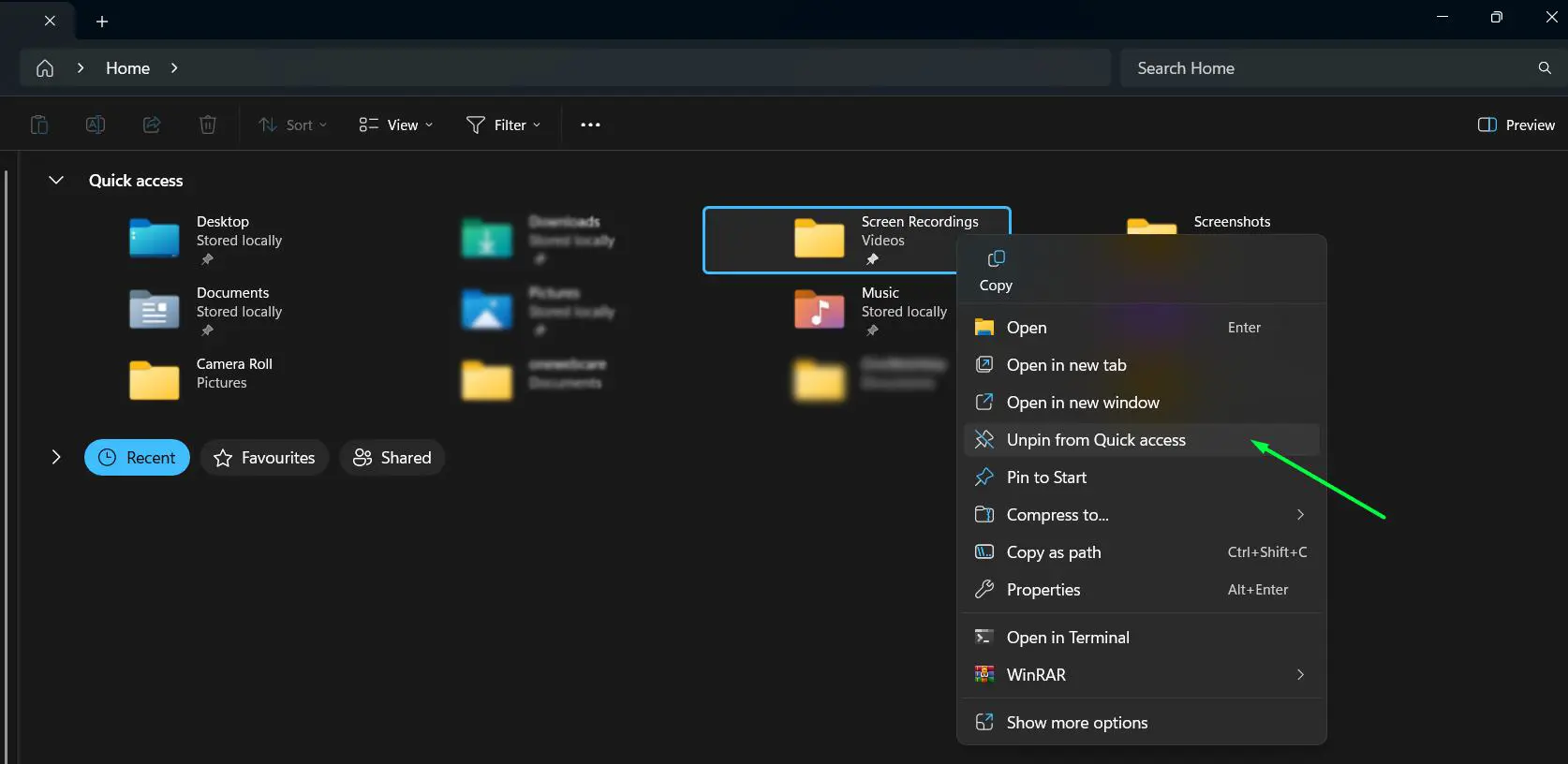
- Step 2: Right-click the folder and select "Pin to Quick access". It will now appear in the left-hand navigation pane under Home every time you open File Explorer.

- Step 3: To remove a pinned folder, right-click it in the Quick Access section and select "Unpin from Quick access".
- Step 4: To control what appears automatically, open File Explorer Options (three-dot menu → Options → General tab) and uncheck "Show recently used files" and "Show frequently used folders" under Privacy.

How to Access My Documents in File Explorer
Your Documents folder is one of the most commonly accessed locations in Windows:

- Step 1: Open File Explorer using any method above.
- Step 2: In the left navigation pane, look for Documents listed under This PC or Quick access (Home).
- Step 3: Click Documents to open the folder and access your personal files.
How to View Hidden Files and Folders in File Explorer
Windows hides certain system files by default. Here is how to reveal them:

- Step 1: Open File Explorer.
- Step 2: Click the View menu in the Command Bar.
- Step 3: Hover over Show and click Hidden items to toggle visibility of hidden files and folders.
- Step 4: To also show file extensions, go to View → Show → File name extensions.
How to Share Files in File Explorer
File Explorer includes built-in sharing options for sending files to other people or devices:

- Step 1: Open File Explorer and select the file or folder you want to share.
- Step 2: Right-click the item. At the top of the context menu, click the Share button (the icon with an arrow pointing up).
- Step 3: A Share with submenu will appear with available apps on your system — such as Phone Link, Paint, Outlook, Microsoft Teams, Microsoft 365 Copilot, HP QuickDrop, Copilot, and more. Select the app or destination you want to share the file to.
- Step 4: If you don't see the app you need, click More options at the bottom of the submenu to see additional sharing destinations including nearby devices via Bluetooth or Wi-Fi.
- Step 5: For network folder sharing, right-click the folder, select Properties → Sharing tab → Share, and choose who can access the folder on your local network.
How to Set Up and Sync OneDrive in File Explorer
OneDrive is Microsoft's cloud storage service that integrates directly with File Explorer:
- Step 1: Search for OneDrive in the Start menu and open the app. Sign in with your Microsoft account.
- Step 2: Follow the on-screen setup instructions to choose your OneDrive folder location and select which folders to sync.
- Step 3: Once set up, a OneDrive folder will appear in File Explorer's left navigation pane.
- Step 4: Files you add to this folder automatically sync to the cloud and any other device signed in to the same account. A cloud icon means the file is online-only; a green checkmark means it is available offline.
How to Import Photos from a Phone Using File Explorer
You can transfer photos and videos from your Android or iPhone directly through File Explorer:
- Step 1: Connect your phone to your PC using a USB cable. On Android, change the USB mode to File Transfer (MTP). On iPhone, tap Trust when prompted.
- Step 2: Open File Explorer. Your phone will appear under This PC as a connected device.
- Step 3: Double-click your phone's icon, then open Internal storage → DCIM to find your photos and videos.
- Step 4: Select the files you want, copy them with Ctrl + C, navigate to your desired folder on your PC (such as Pictures), and paste with Ctrl + V.
Optimizing File Explorer Performance
Before jumping to troubleshooting, these adjustments can significantly improve File Explorer speed and responsiveness on Windows 11 systems.
Disable Home or Quick Access
Quick Access tracks recently used files and folders, but this feature sometimes slows down File Explorer, especially on systems with limited hardware resources:
- Step 1: Open File Explorer Options from the three-dot menu.
- Step 2: Under the General tab, change 'Open File Explorer to' from 'Home' to 'This PC'.

- Step 3: Uncheck 'Show recently used files' and 'Show frequently used folders'.
- Step 4: Click 'OK' to save changes.
Adjust View Settings for Better Performance
Thumbnail generation and preview features consume system resources. Disabling these options speeds up folder navigation:
- Step 1: Open Folder Options and switch to the View tab.
- Step 2: Check 'Always show icons, never thumbnails'.

- Step 3: Uncheck 'Show preview handlers in preview pane'.

- Step 4: Apply settings and test performance.
Folders containing thousands of files open noticeably faster with these adjustments, though the visual presentation becomes more basic.
Quick Fixes That Solve Most File Explorer Problems
When File Explorer starts misbehaving, try these fast solutions before moving on to deeper troubleshooting.
Restart File Explorer Process
This works best when File Explorer becomes unresponsive or displays content incorrectly. The process takes less than a minute:
- Step 1: Press Ctrl + Shift + Esc to open Task Manager, or right-click the Windows icon and select Task Manager.

- Step 2: In the modern Windows 11 Task Manager, click into the search bar at the top center of the window and type "explorer" to instantly locate the Windows Explorer process without having to scroll through hundreds of background apps.
- Step 3: Right-click on Windows Explorer and select 'Restart'.

- Step 4: Wait a few seconds while the process restarts automatically. The desktop and taskbar will briefly disappear before reappearing.
This simple restart clears temporary glitches without affecting open documents or applications.
Restart Explorer.exe via Command Prompt
If Task Manager is unresponsive, you can manually restart File Explorer through Command Prompt:
- Step 1: Search cmd in the Start menu, right-click Command Prompt, and select Run as administrator.
- Step 2: Type taskkill /f /im explorer.exe and press Enter. This closes File Explorer and the desktop will go blank.
- Step 3: Type start explorer.exe and press Enter. File Explorer and your desktop will reappear.
Clear File Explorer History
Accumulated history data sometimes causes sluggish performance or display errors. Clearing this data often restores normal operation:
- Step 1: Open File Explorer and click the three-dot menu icon.
- Step 2: Select 'Options' to open Folder Options.
- Step 3: Under the General tab, find the Privacy section.

- Step 4: Click 'Clear' next to 'Clear File Explorer history'.
- Step 5: Click 'OK' to apply changes.
Advanced Troubleshooting for Persistent Issues
When quick fixes don't resolve the problem, these more comprehensive solutions address deeper system issues.
Run System File Checker
Corrupted system files frequently cause File Explorer malfunctions. The built-in System File Checker scans and repairs these files automatically:
- Step 1: Right-click the Start button and select 'Terminal (Admin)'.

- Step 2: Type the command: sfc /scannow

- Step 3: Press Enter and wait while the scan completes (this takes 15–30 minutes).
- Step 4: Restart the computer after the scan finishes.
The scan examines every protected system file and replaces corrupted versions with cached copies.
Need help opening ZIP files in Windows? Check this guide on opening ZIP files in Windows
Note on Compressed Files: You no longer need third-party apps like WinRAR or 7-Zip for most archives. Windows 11 now natively supports extracting and creating .RAR, .7z, .TAR, and .GZ files directly within File Explorer. Just right-click the archive and select Extract All.
Use DISM Tool to Repair Windows Image
When System File Checker finds problems it can't fix, the Deployment Image Servicing and Management tool provides a deeper repair option:
- Step 1: Right-click the Start button and select 'Terminal (Admin)'.
- Step 2: Type: DISM /Online /Cleanup-Image /RestoreHealth
- Step 3: Press Enter and allow 20–40 minutes for completion.
- Step 4: Run the sfc /scannow command again after DISM finishes.
- Step 5: Restart the system.
DISM connects to Windows Update servers to download replacement files for damaged components. A stable internet connection ensures the process completes successfully.
Check for Windows Updates
Microsoft regularly releases patches that fix known File Explorer bugs. Keeping Windows updated is one of the simplest preventative measures:
- Step 1: Press Windows + I to open Settings.
- Step 2: Go to Windows Update.
- Step 3: Click Check for updates and install all available updates.
- Step 4: Restart your PC if prompted.
Change Display Settings
Incorrect scaling or resolution settings can sometimes interfere with File Explorer's layout and performance:
- Step 1: Right-click your desktop and select Display settings.
- Step 2: Try a different scaling percentage such as 100% or 125%.
- Step 3: Ensure the screen resolution matches your monitor's recommended setting.
- Step 4: If you use multiple monitors, test with only one connected to isolate the issue.
Extend Drive C If It Is Full
A nearly full system drive causes slowdowns across Windows, including File Explorer:
- Step 1: Open File Explorer and click This PC to check free space on your Local Disk (C:).
- Step 2: Search for Disk Cleanup in the Start menu and run it to remove temporary files.
- Step 3: Uninstall unused programs via Settings → Apps.
- Step 4: Move large files to a secondary drive or external storage to free up space on C:.
Reset File Explorer Settings
Sometimes custom settings or corrupted preferences cause unexpected behavior. Resetting File Explorer to default settings provides a fresh start:
- Step 1: Open File Explorer and click the three-dot menu.
- Step 2: Select 'Options' to access Folder Options.
- Step 3: Click the 'Restore Defaults' button under each tab (General, View, Search).

- Step 4: Apply the changes and restart File Explorer via Task Manager.
This action doesn't delete files or folders — it only resets how File Explorer displays and organizes content.
Fixing Specific File Explorer Features
Different components of File Explorer may require targeted solutions when they malfunction independently.
How to Fix File Explorer Search Not Working
When File Explorer search returns incomplete results or fails entirely, rebuilding the search index typically solves the issue:
- Step 1: Type 'Indexing Options' in the Windows search box and open it.
- Step 2: Click the 'Advanced' button in the Indexing Options window.
- Step 3: Under the Index Settings tab, click 'Rebuild'.
- Step 4: Confirm the action and wait several hours for completion. Initial searches may be slower until indexing finishes.
The rebuild process runs in the background and won't interfere with normal computer use.
How to Restore Missing File Explorer Toolbar Icons
Sometimes the File Explorer toolbar appears blank or missing icons:
- Step 1: Open File Explorer and click View in the Command Bar.

- Step 2: Select 'Show' and ensure all desired elements are checked.
- Step 3: If icons remain missing, restart File Explorer through Task Manager.
- Step 4: Consider running System File Checker if the problem persists.
Want to show the Recycle Bin on your Windows desktop? Check this guide here for easy steps!
How to Run the Windows Troubleshooter for File Explorer
Windows 11 includes a built-in troubleshooter that automatically detects and attempts to fix common File Explorer problems:
- Step 1: Press Windows + I to open Settings.
- Step 2: Navigate to System, then Troubleshoot.
- Step 3: Click 'Other troubleshooters'.
- Step 4: Find and run the 'Search and Indexing' troubleshooter as well as the 'Windows Store Apps' troubleshooter (File Explorer is classified as a system app in Windows 11).
- Step 5: Follow the on-screen instructions and apply any recommended fixes.
The troubleshooter scans for issues with permissions, corrupted files, and configuration errors, then attempts automatic repairs.
Want step-by-step Windows help? Check this guide
Creating a New User Profile to Isolate Issues
If all troubleshooting steps above have failed, the problem may be in your user profile rather than Windows itself. Creating a new account helps confirm this:
- Step 1: Open Settings and go to Accounts.
- Step 2: Select 'Family & other users'.
- Step 3: Click 'Add account' under Other users and follow the prompts to create a new local account.
- Step 4: Sign out and log in to the new account, then test File Explorer functionality.
If File Explorer works perfectly in the new account, the original profile contains the problem. Transferring files to the new account and using it as the primary profile resolves the issue permanently.
How to Get Official Microsoft Support for File Explorer
If you have worked through every step above and still need help, Microsoft offers several official support channels:
- Visit the Microsoft Support website at support.microsoft.com and search for your specific File Explorer issue. Always include your Windows version (e.g., "Windows 11 File Explorer slow") for the most relevant results.
- Use Windows Copilot: Windows 11 features a built-in AI assistant that excels at troubleshooting. Press Windows key + C (or click the Copilot icon on your taskbar) and type, "Why is my File Explorer freezing?" Copilot will scan Microsoft's official documentation and guide you step-by-step through the fix, sometimes even offering a button to open the exact settings menu you need.
- Use the Get Help app built into Windows 11 — search "Get Help" in the Start menu for interactive troubleshooting guides and live chat support with Microsoft Answer Tech staff.
- Press Windows key + F to open the Feedback Hub and report issues directly to Microsoft, or browse existing known issues and workarounds posted by the Windows team.
- Post a question on the Microsoft Community Forums at answers.microsoft.com. Microsoft Support staff and MVPs actively answer questions, and many common issues already have detailed solutions posted.
- For complex hardware-level issues, consider Microsoft Answer Desk, Microsoft's live paid tech support service, where you can chat directly with a support specialist.
Preventing Future File Explorer Problems
Regular maintenance reduces the likelihood of encountering File Explorer issues in the first place:
- Keep Windows 11 updated with the latest patches and feature updates. Microsoft regularly releases fixes for known File Explorer bugs. Enable automatic updates or check manually each month to ensure the system receives these improvements.
- Avoid installing questionable third-party shell extensions or file management tools. These programs integrate deeply with File Explorer and often cause conflicts. Stick to reputable software from trusted developers.
- Run Disk Cleanup monthly to remove temporary files and clear system caches. Accumulated junk files sometimes interfere with File Explorer operations.
- Perform regular malware scans using Windows Security or a trusted third-party antivirus. Malware infections occasionally target File Explorer to hide their presence or disrupt system operations.
When to Consider Professional Help
Some File Explorer problems indicate deeper hardware or software issues beyond typical troubleshooting. Persistent crashes after trying all solutions, File Explorer problems accompanied by widespread system instability, or situations where multiple Windows components malfunction simultaneously suggest more serious underlying problems.
In these cases, backing up important data and considering a clean Windows installation may be necessary. Professional technical support can also diagnose hardware failures or complex software conflicts that aren't easily resolved through standard troubleshooting.
Need help with Paint in Windows? Check this guide here for easy tips!
Pro Tips for Windows 11 File Explorer
1. Bring Back the Classic Right-Click Menu
One of the biggest complaints about Windows 11 is the condensed right-click context menu, which hides advanced options behind a "Show more options" button. To bypass this instantly and see the classic, full context menu, simply hold the Shift key while right-clicking any file or folder (or select the file and press Shift + F10).
2. The "Copy as Path" Shortcut
If you ever need to share the exact location of a file (for a script, command prompt, or sharing over a chat app), you no longer have to manually click the address bar. Just select the file or folder and press Ctrl + Shift + C. This instantly copies the exact file path to your clipboard.
3. Snap Layouts Integration
If you are trying to organize files between two different folders, Windows 11 makes it incredibly easy. Hover your mouse cursor over the Maximize button (the square icon next to the X in the top right corner) of your File Explorer window. A grid menu will drop down, allowing you to instantly snap the window to the left, right, or corner of your screen, letting you perfectly align multiple folders for easy drag-and-drop transfers.
Frequently Asked Questions
How do I get help with File Explorer in Windows 11?
Press F1 while File Explorer is open to go directly to Microsoft's official File Explorer support page. You can also use the Get Help app from the Start menu, visit Microsoft Community Forums at answers.microsoft.com, or click the three-dot (See more) menu in File Explorer and select Options to access settings and built-in guidance.
Why does File Explorer keep crashing in Windows 11?
File Explorer crashes typically result from corrupted system files, conflicting third-party software, outdated graphics drivers, or damaged user profiles. Running System File Checker (sfc /scannow) and updating all drivers resolves most crashing issues. If crashes persist, creating a new user profile often eliminates profile-specific corruption.
How do I reset File Explorer to default settings?
Open File Explorer, click the three-dot menu, select Options, then click Restore Defaults under each tab in Folder Options. This resets view preferences, search settings, and general behavior without deleting any files. Restart File Explorer through Task Manager after applying changes for them to take full effect.
Can I reinstall File Explorer in Windows 11?
File Explorer is a core Windows component that cannot be traditionally uninstalled or reinstalled. However, running System File Checker (sfc /scannow) and DISM repair commands effectively repairs or replaces damaged File Explorer files. A clean Windows installation provides the only true reinstallation option.
Why is File Explorer so slow in Windows 11?
Slow File Explorer performance usually stems from Quick Access tracking, thumbnail generation for large folders, indexing operations, or insufficient system resources. Disable Quick Access, turn off thumbnail previews, exclude certain folders from indexing, and ensure adequate RAM availability. A nearly full C: drive also contributes significantly to slowdowns.
How do I access File Explorer Options in Windows 11?
Click the three-dot (See more) menu in File Explorer and select Options. Alternatively, type "File Explorer Options" in the Windows taskbar search and open it from the results. This opens the Folder Options dialog where you can customize view settings, Quick Access behavior, and search preferences.
What should I do if File Explorer won't open at all?
If File Explorer refuses to launch, press Ctrl + Shift + Esc to open Task Manager, click File, select Run new task, type explorer.exe, and press Enter. If this fails, boot into Safe Mode and run System File Checker and DISM repair commands. Severe cases may require a system restore to a previous working state.
How do I see hidden files and folders in File Explorer?
Open File Explorer, click View in the Command Bar, hover over Show, and select Hidden items. This toggles visibility of hidden files and folders. To also display file extensions, go to View → Show → File name extensions.
How does OneDrive work in File Explorer?
Once OneDrive is set up with your Microsoft account, it appears as a folder in File Explorer's navigation pane. Files you place in this folder sync automatically to Microsoft's cloud servers and any other devices signed in to the same account. A cloud icon indicates a file is stored online only, while a green checkmark means it is saved locally and available offline.